Tempered

Coming soon

Fast, modern, feature-packed

  • Practice with real-time grading and assessment
  • Learn at your own pace or play in real time
  • Editable, app-generated fingering for every sheet*
  • Create your own custom ranges to practice tricky parts
  • Fits your keyboard range
  • Classical repertoire and standard exercises
  • Create your own collections
  • Upload your own files
  • Fast real-time engraver that fits your screen
  • Curated community videos (or add your own)
  • Learn basic music theory via dedicated tools
  • And more…
  • *The app will attempt to generate ergonomic, sensible fingering based on the sheet. This, however, should be treated as a suggestion rather than a rule.

Practice from the score, note by note

All the tools you need at your fingertips.
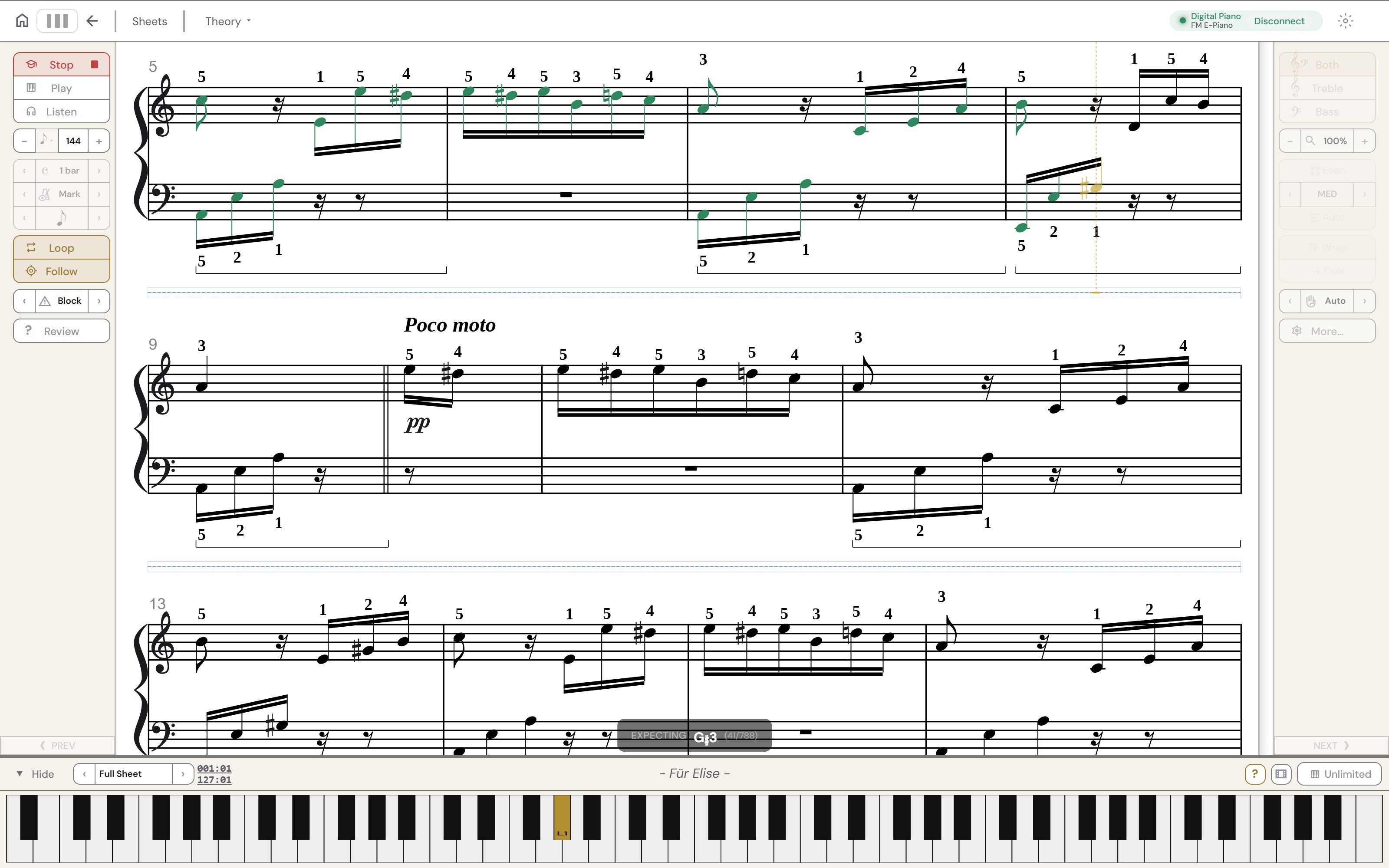
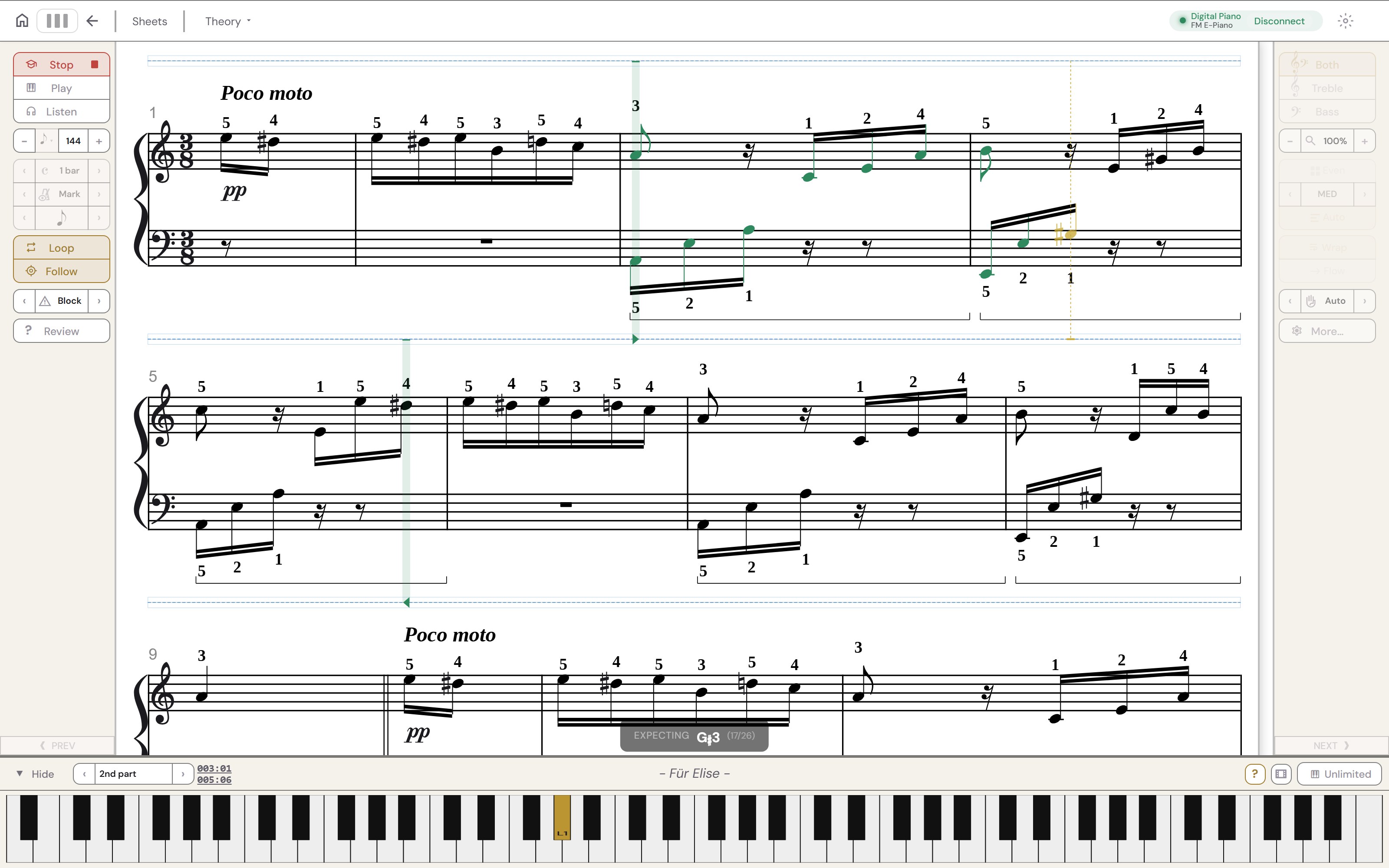
Beethoven's Für Elise open in the app during a Learn session: played notes are green, the next note is gold, and its key is lit on the on-screen keyboard.

Create and save ranges

Custom ranges let you practice tricky parts in isolation.
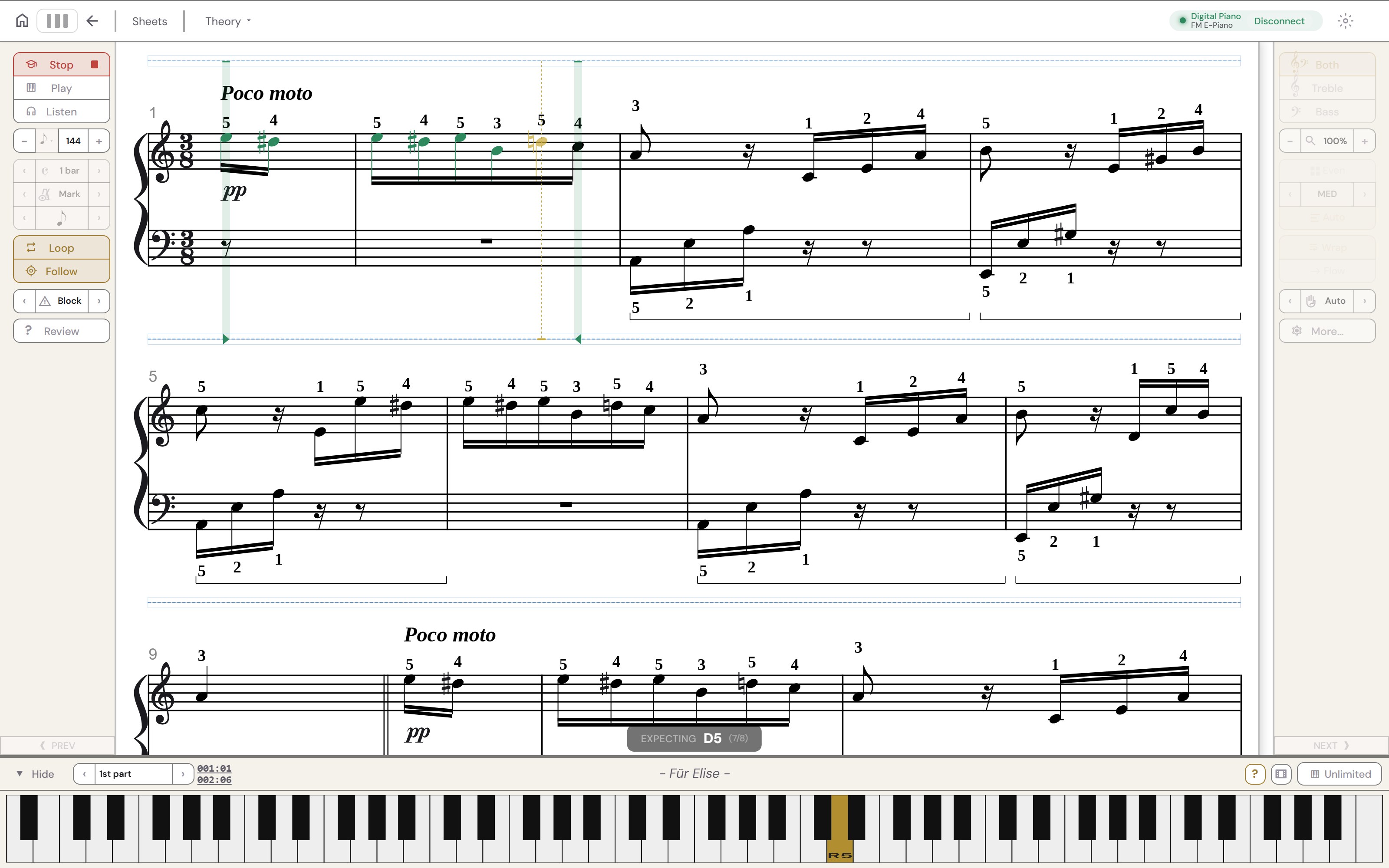
Für Elise with a saved range named 1st part, bars 1 to 2, partly played in green.
Für Elise with a saved range named 2nd part, bars 3 to 5, partly played in green.

No full-size keyboard?

Set your range to find what you can play.
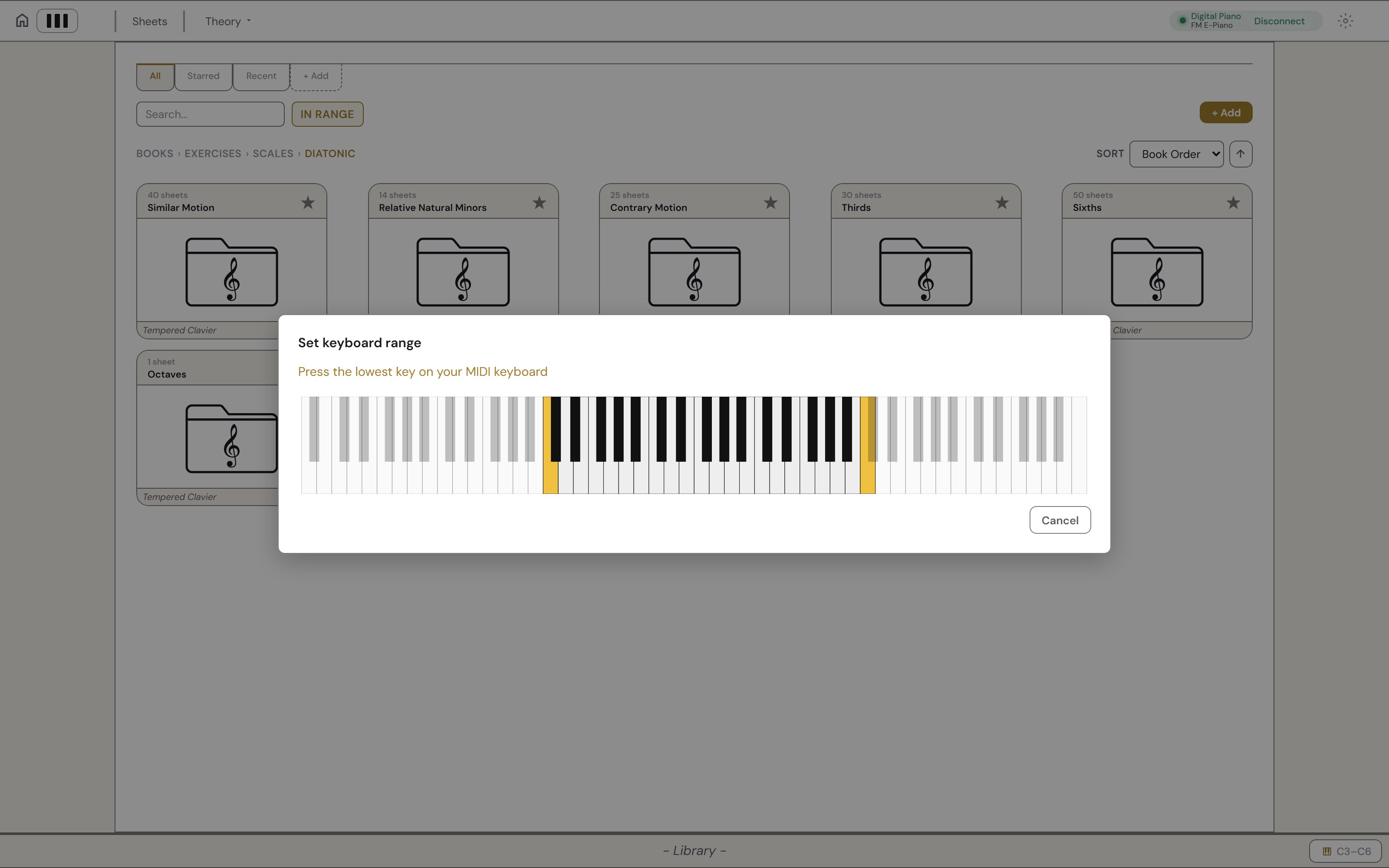
The library's diatonic scales with In range switched on, so each folder counts only the scales that fit, and the Set keyboard range dialog open with C3 and C6 lit and the keys outside them greyed.
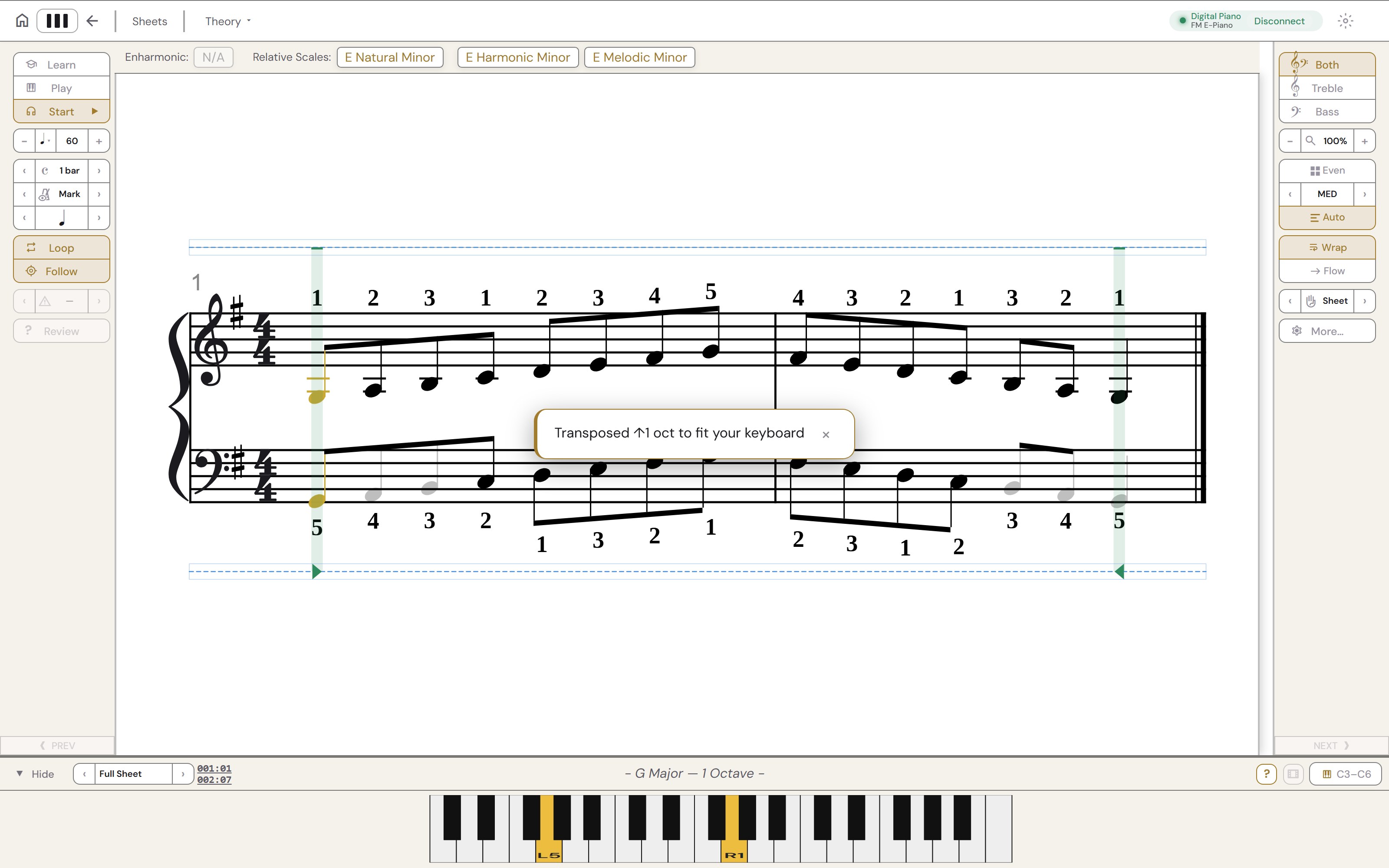
A one-octave G major scale open in the app with a 37-key keyboard set: a notice reads Transposed up one octave to fit your keyboard, and the on-screen keyboard shows only the keys from C3 to C6.

A library of classical repertoire and exercises

Scales, arpeggios, chords, five-finger patterns, rhythm drills and graded sight-reading sit beside études and complete pieces.
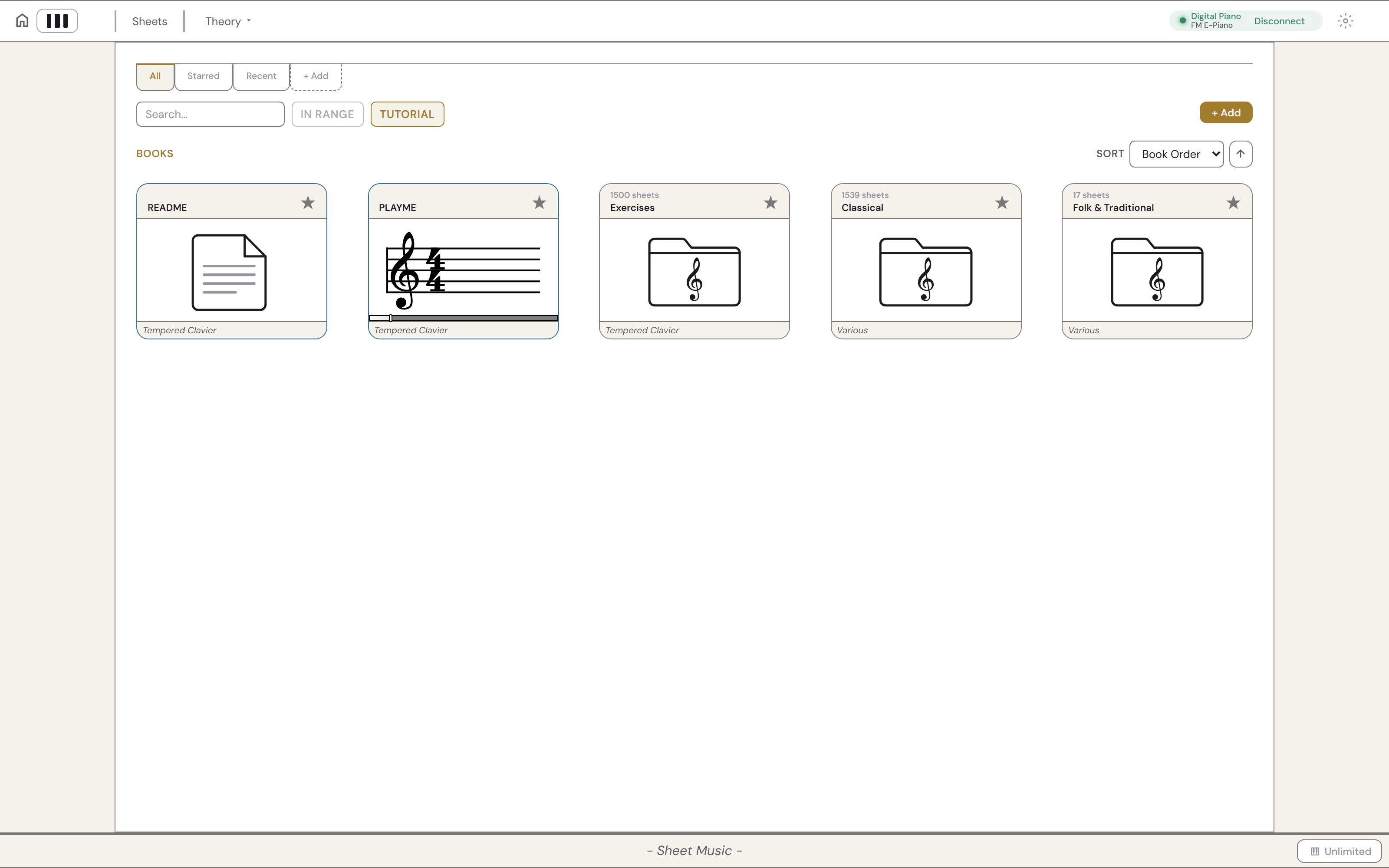
The library's front page: shelves for Exercises, Classical and Folk and Traditional, with the number of sheets on each.
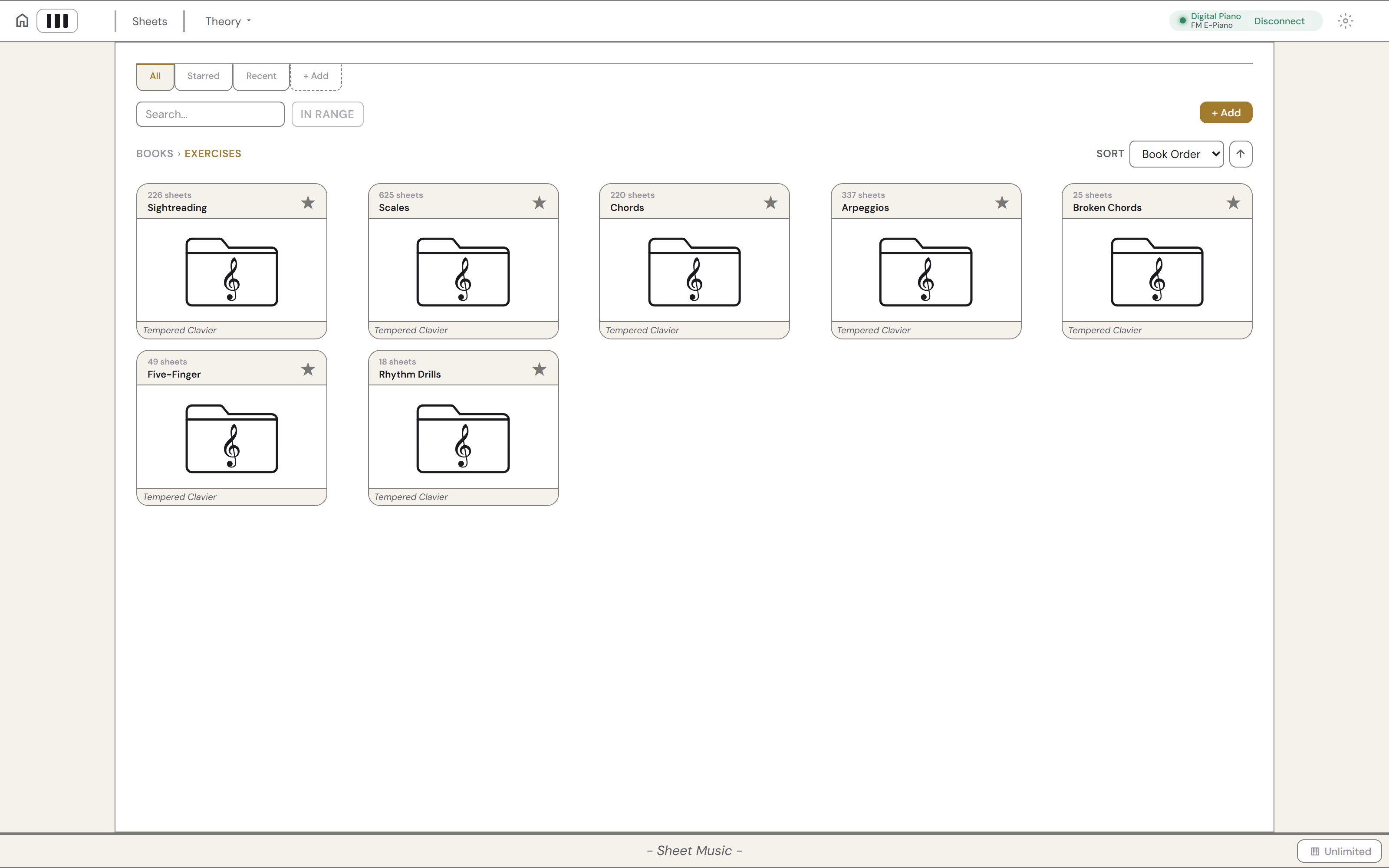
The Exercises shelf: sight-reading, scales, chords, arpeggios, broken chords, five-finger patterns and rhythm drills.
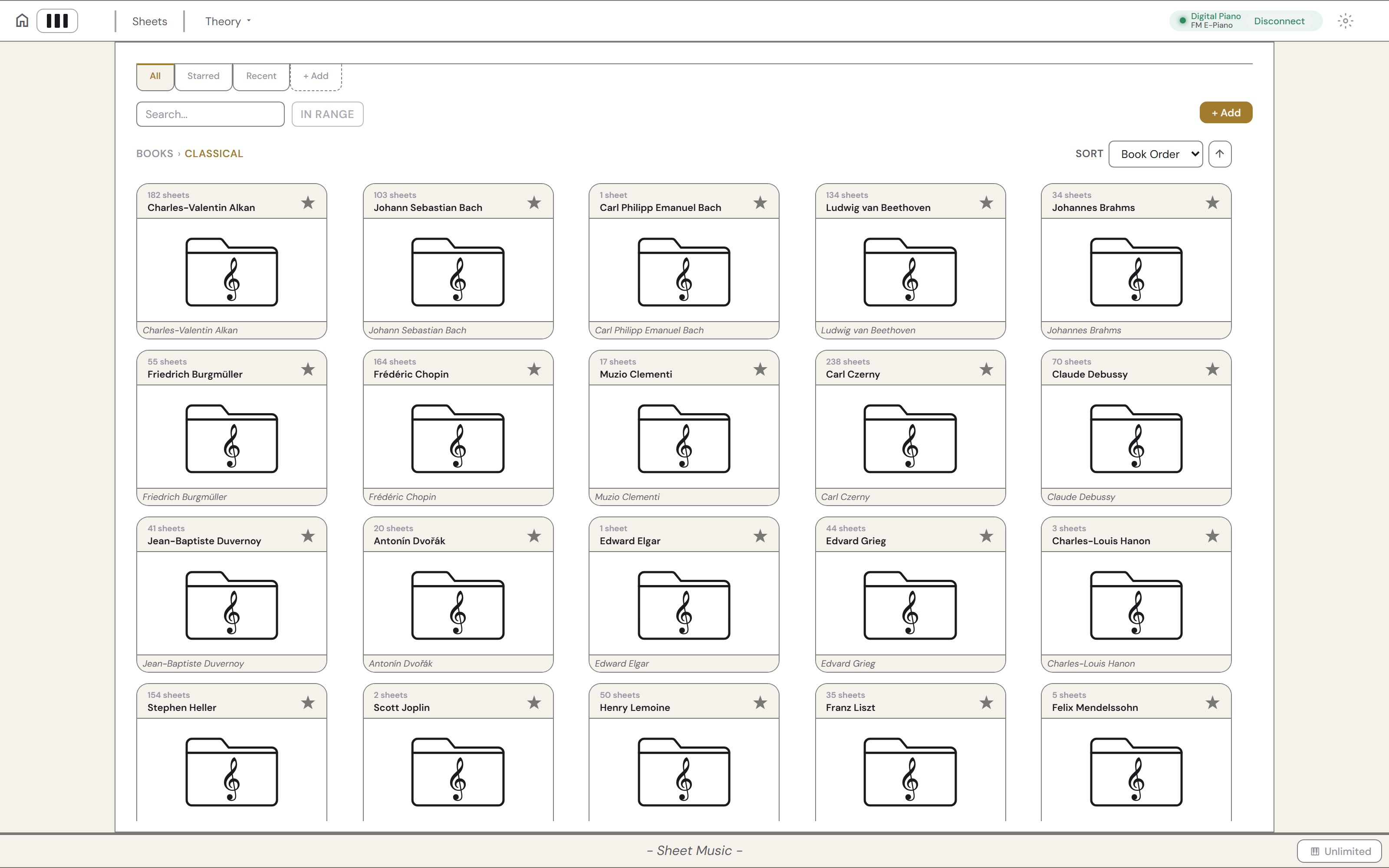
The Classical shelf: one folder per composer, from Alkan, Bach and Beethoven to Chopin, Czerny, Debussy and Liszt, each with its number of sheets.

Create your own collections

Organize your practice the way you see fit.
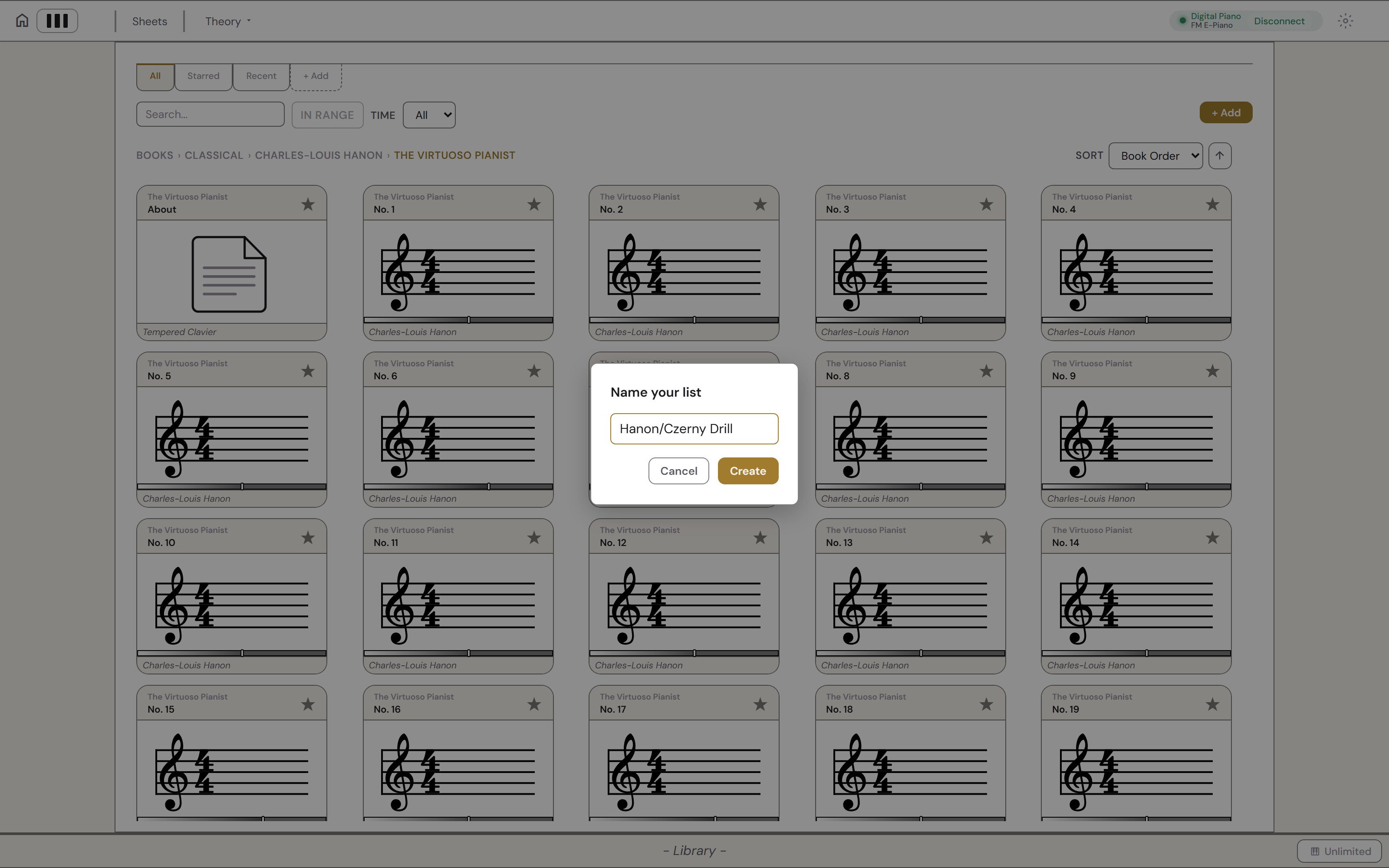
Hanon's The Virtuoso Pianist in the library, with No. 1 dropped on the tab row and a Name your list dialog reading Hanon/Czerny Drill.
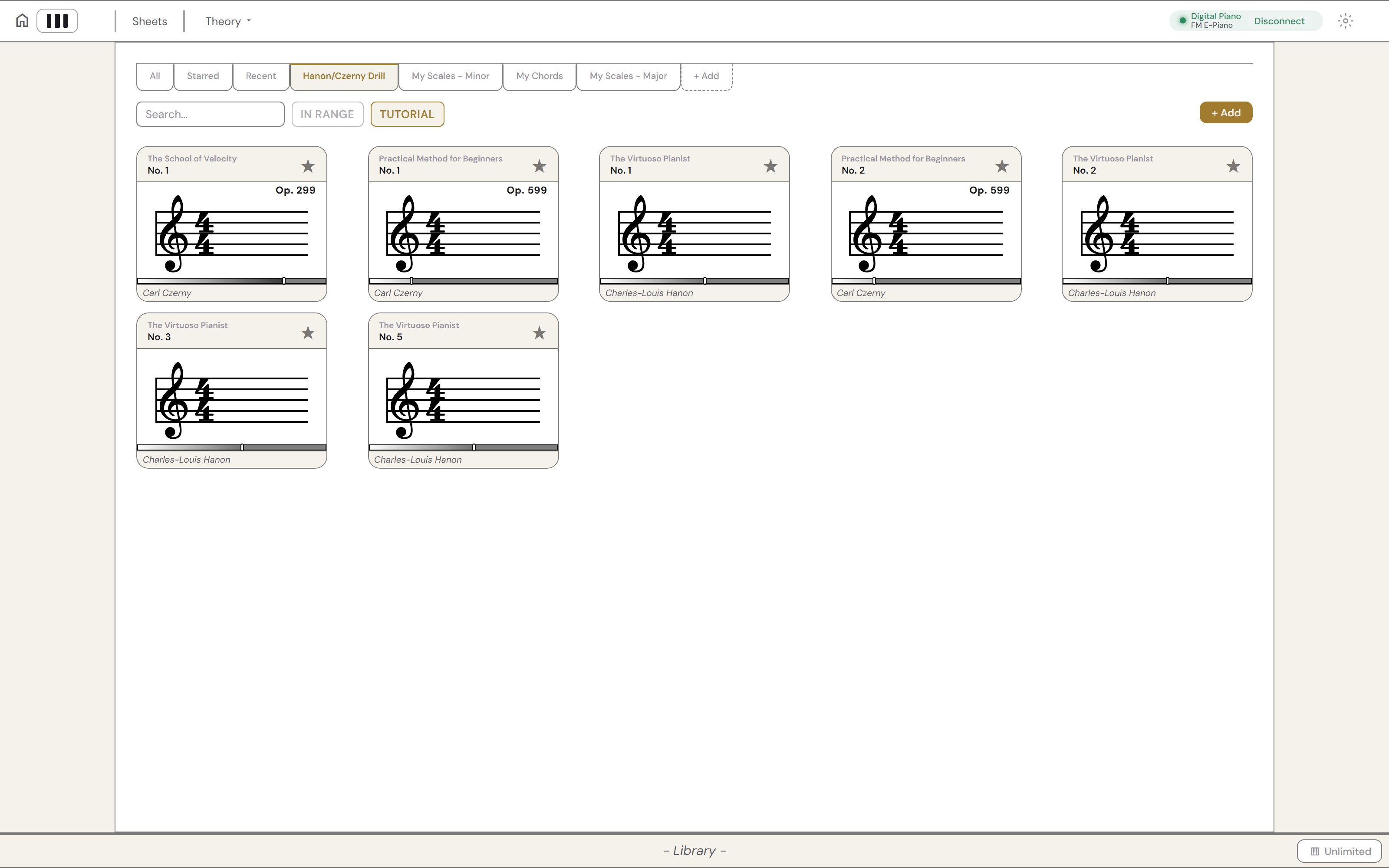
The Hanon/Czerny Drill list open beside lists named My Scales - Minor, My Chords and My Scales - Major, holding Hanon exercises and Czerny studies from Op. 599 and Op. 299.

Fast, real-time engraver

Set bar packing rules and viewport zoom to your own liking.
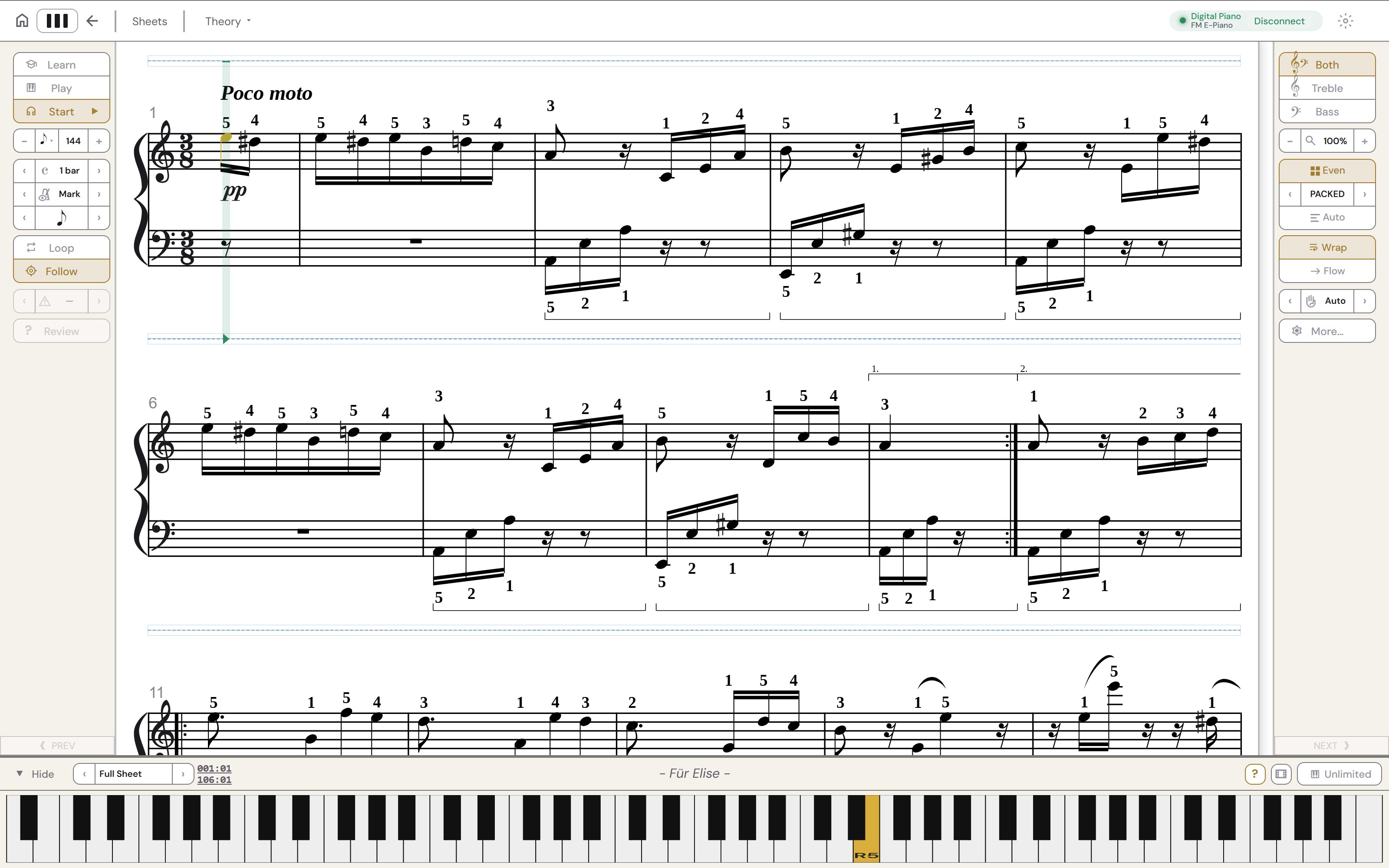
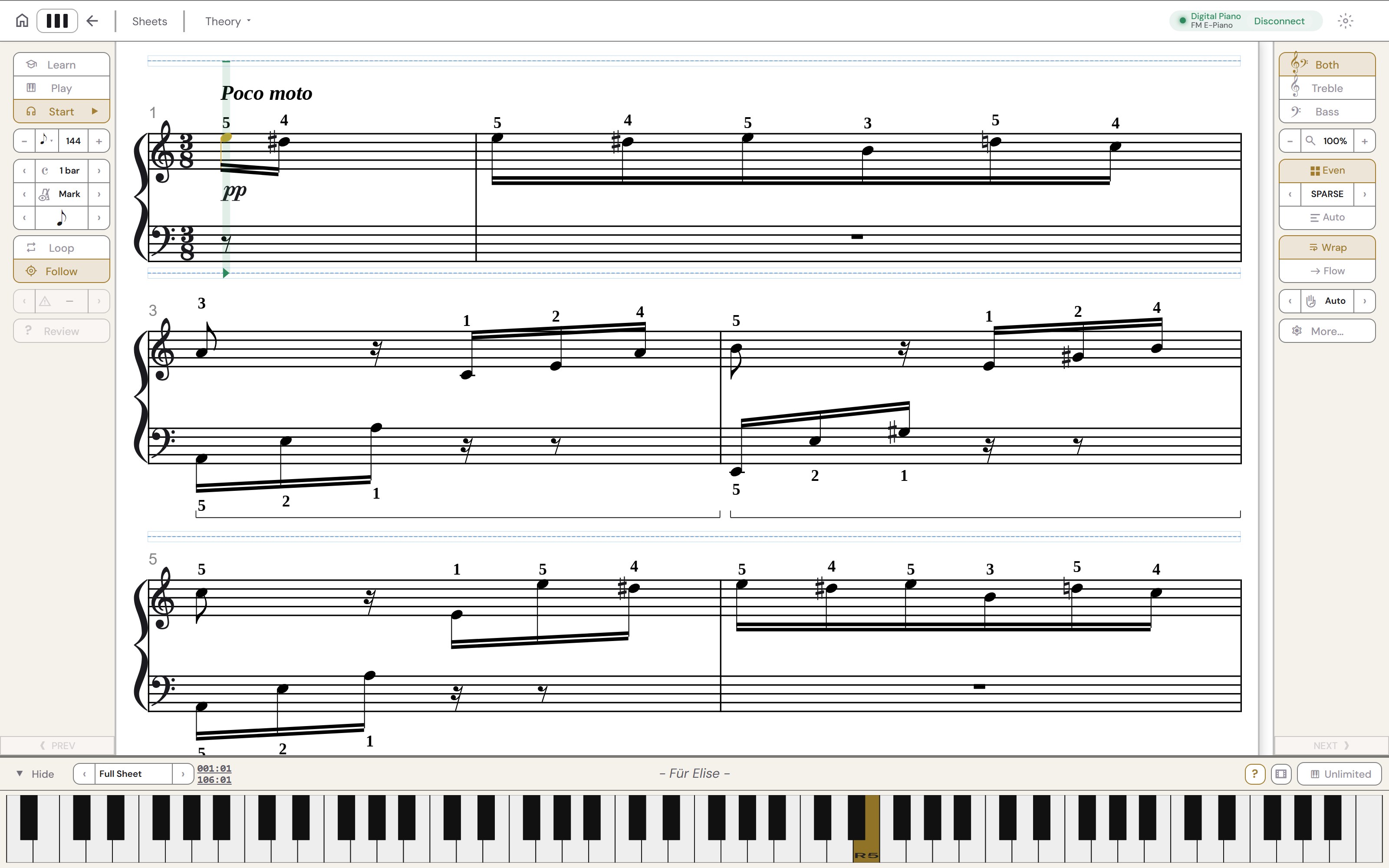
Für Elise with Even spacing and Packed density: five equal-width bars to a line.
The same sheet with Even spacing and Sparse density: two wide bars to a line.
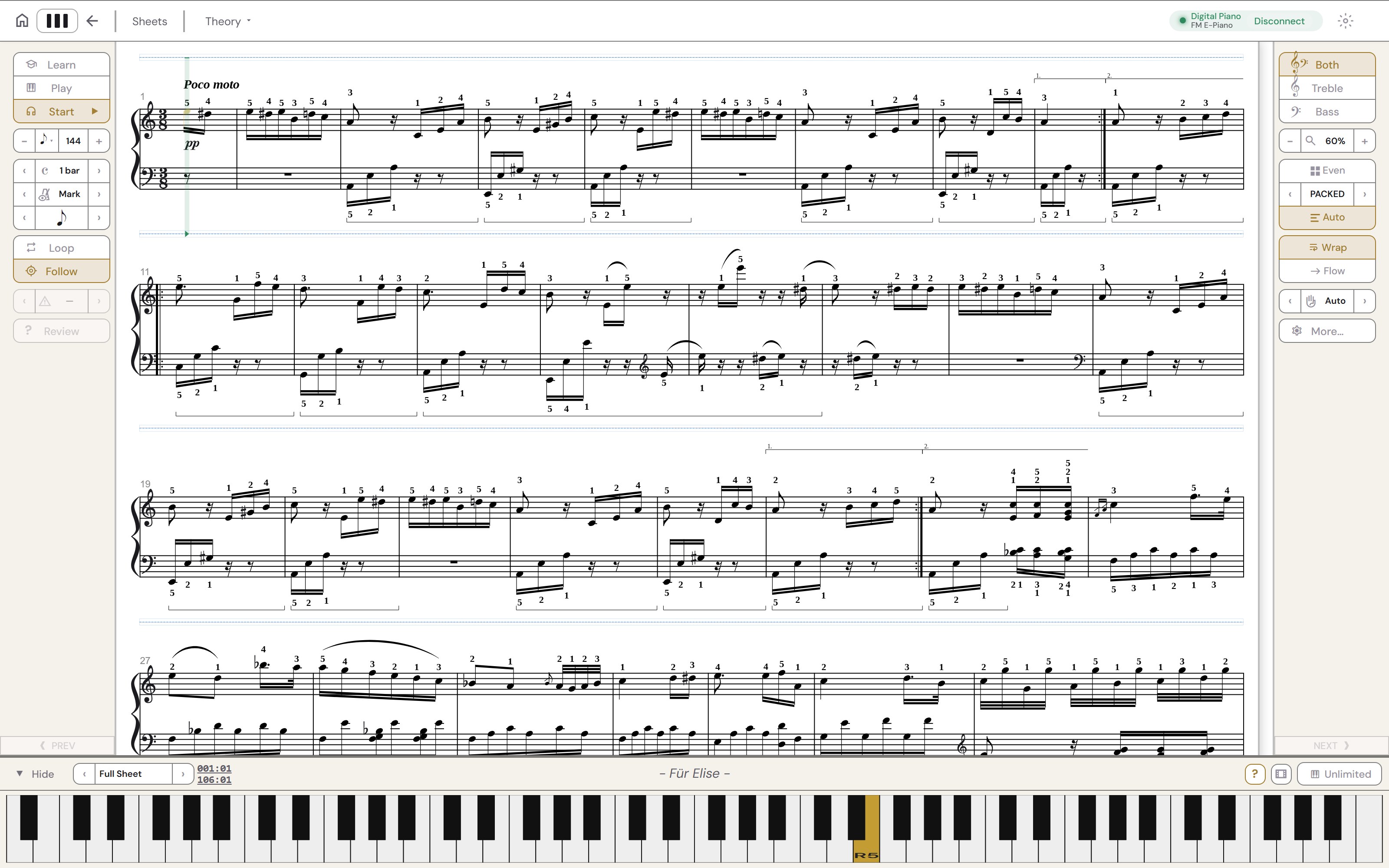
The same sheet with natural bar widths, Packed, at 60% zoom: about nine bars to a line.
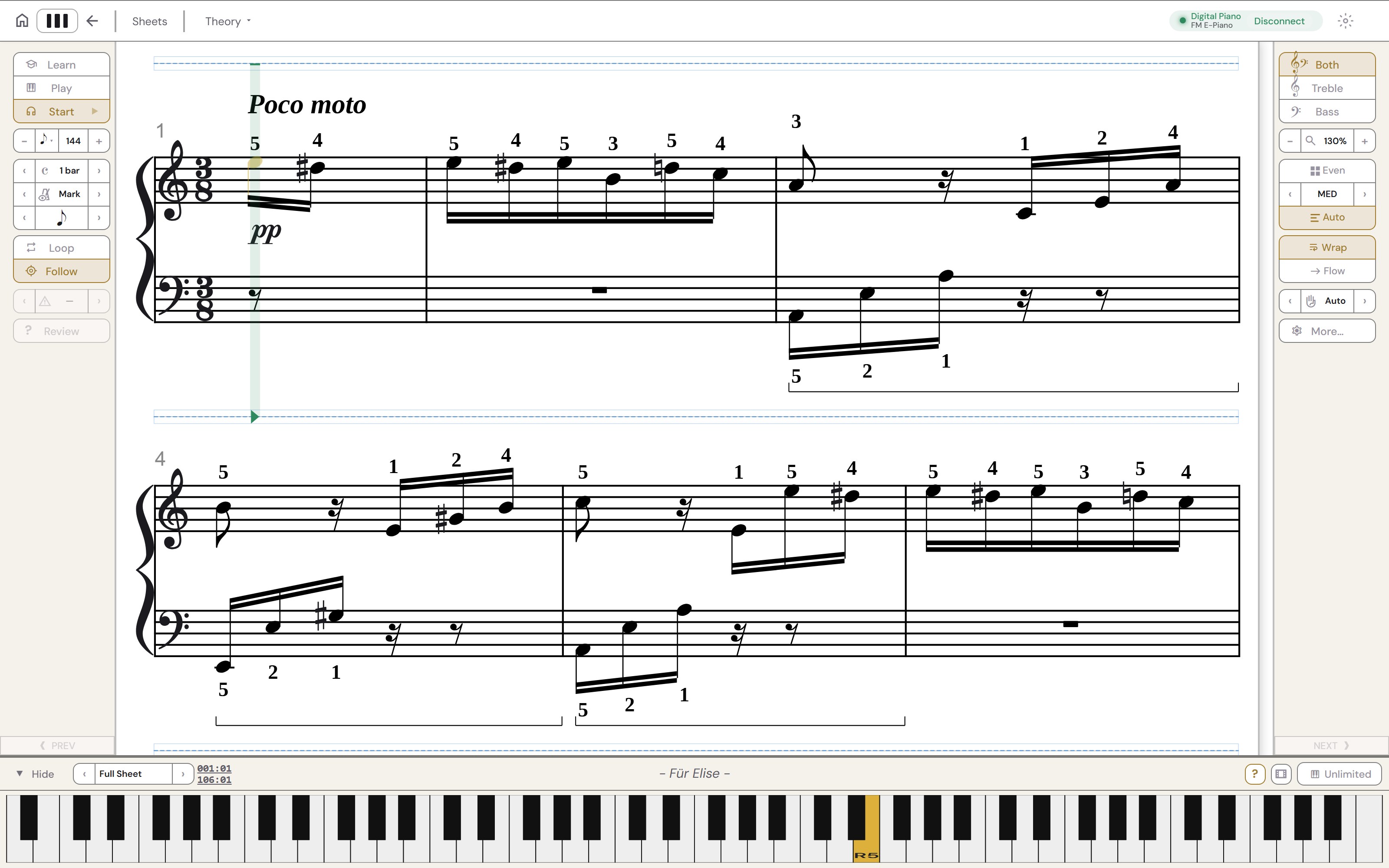
The same sheet with natural bar widths, Medium density, at 130% zoom: three large bars to a line.

Wrap or Flow

Choose the layout that works for you.
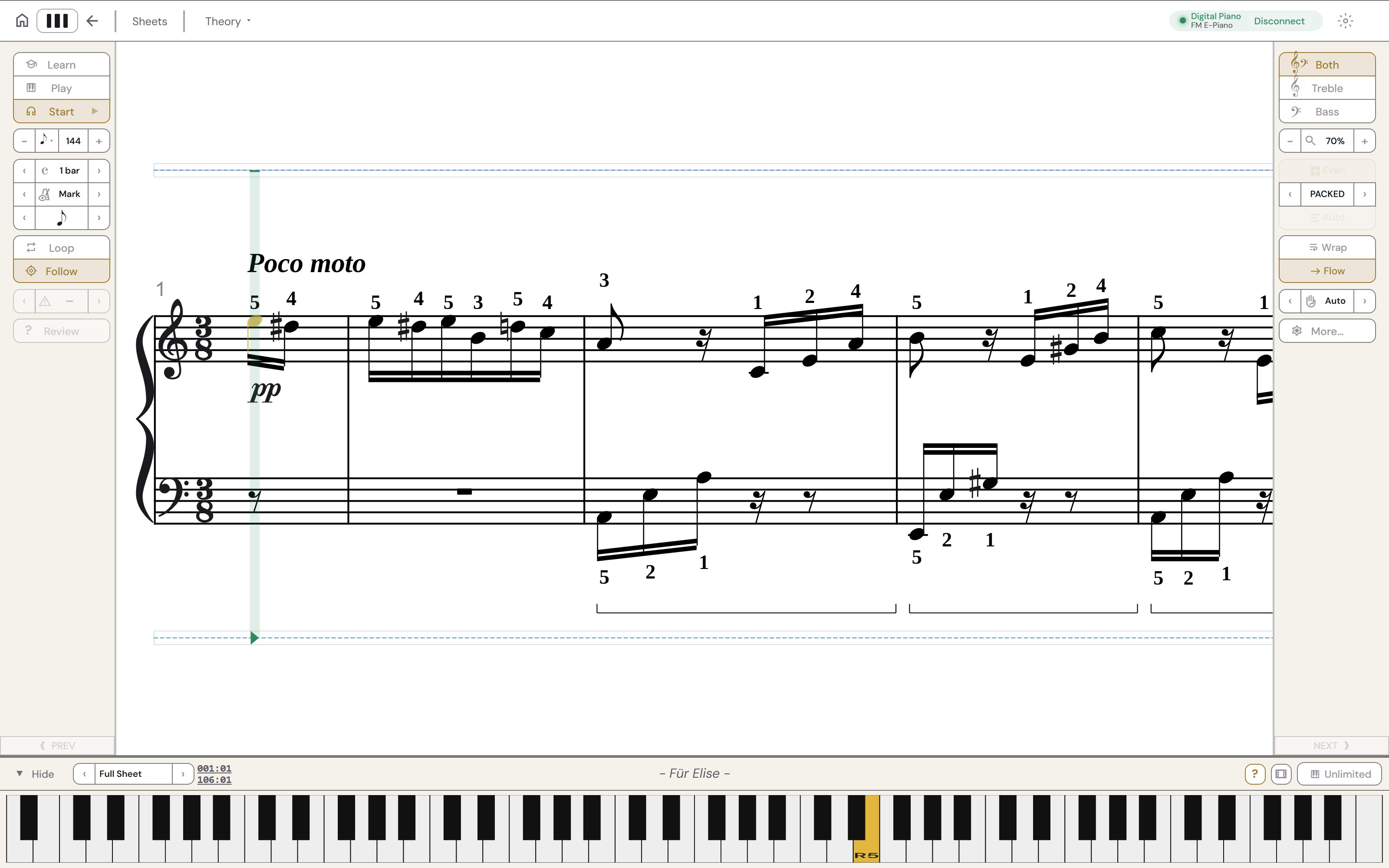
Für Elise in Wrap: the score in lines of five bars, like a printed page.
The same sheet in Flow: one long line of large notation that scrolls as you play.

Bring your own scores

Upload a file and practice it like any sheet in the library. Don't like the app-generated fingering guides? Create your own.
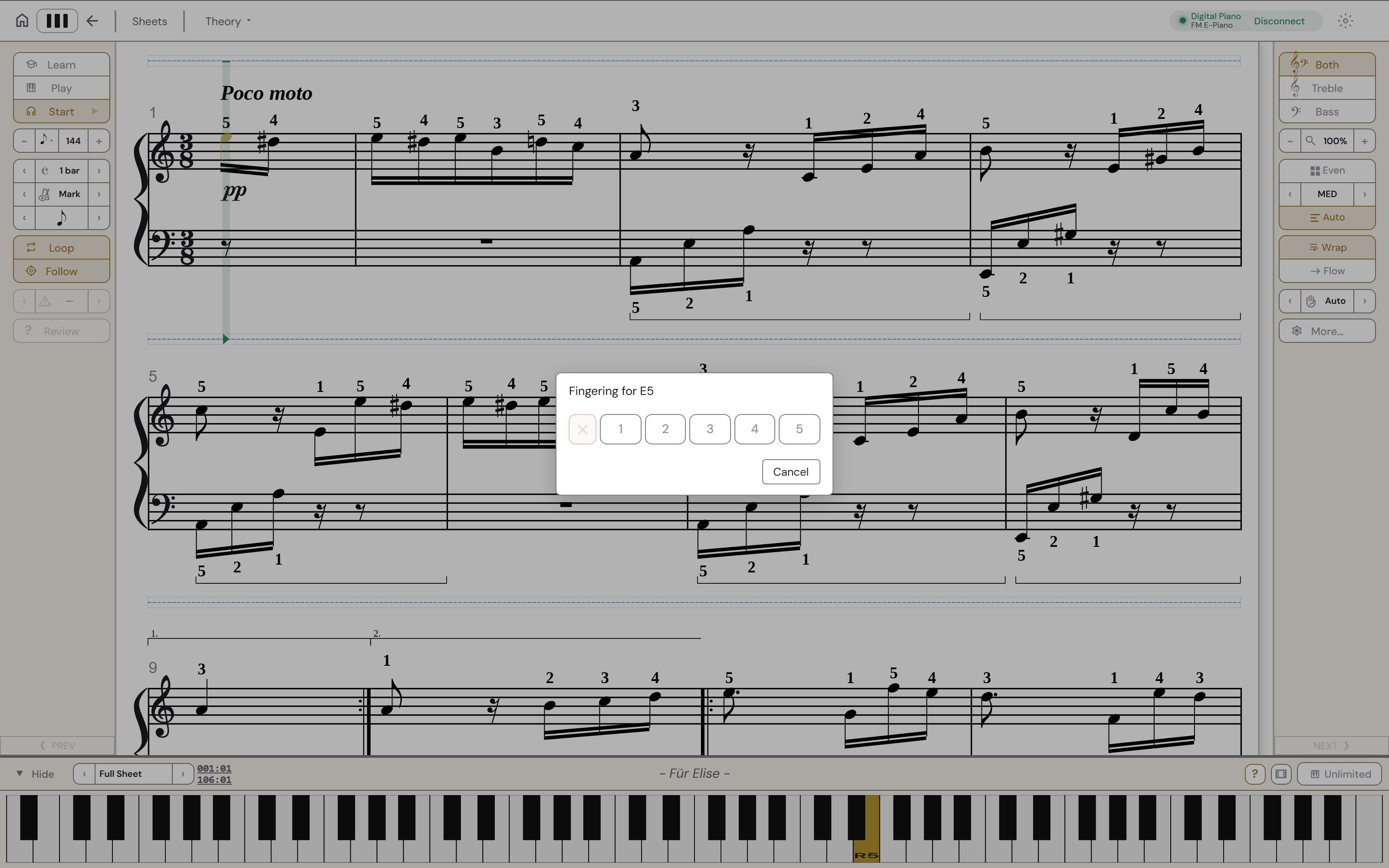
Für Elise open in the app with the fingering editor on its first note, E5: a cross to clear it and the fingers 1 to 5 to choose from.
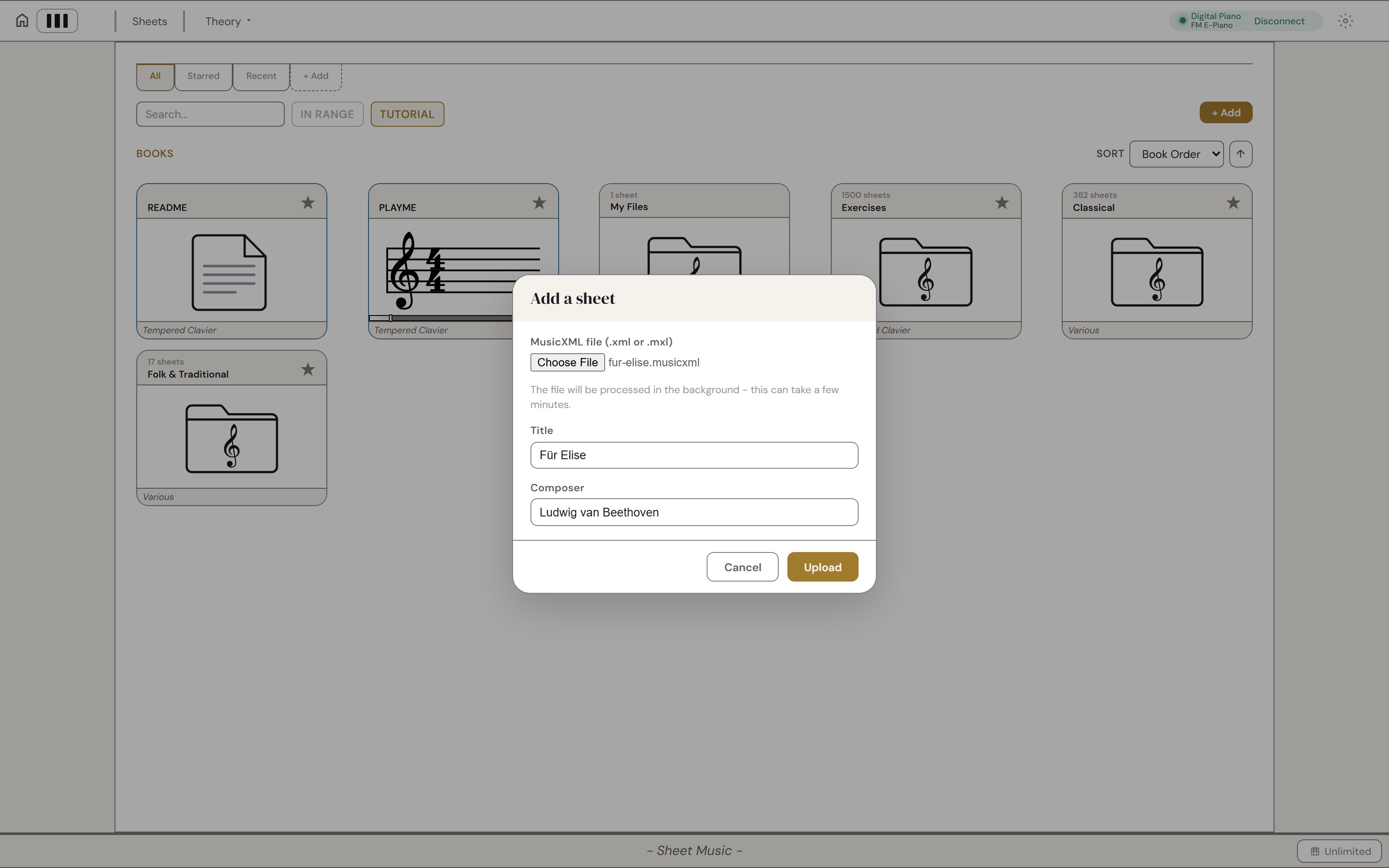
The Add a sheet dialog over the library, with a score file of Für Elise chosen and its title and composer filled in; behind it, a My Files shelf holds one uploaded sheet.

Learn the theory behind it

Dedicated tools for scales, intervals, chords and scale degrees.
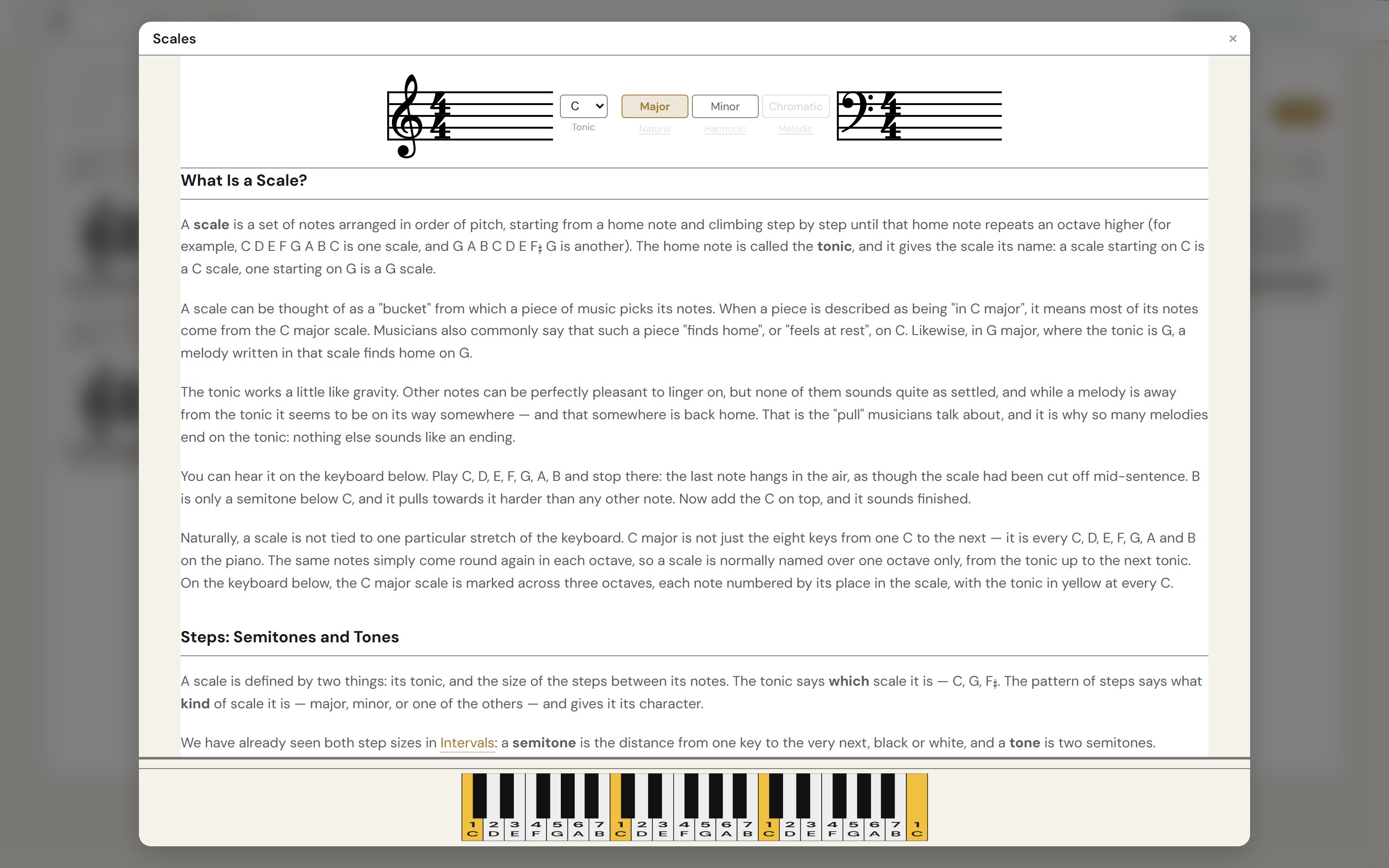
The Scales lesson: C major on a treble and bass staff above the text, and the keyboard below with every note of the scale numbered and each C lit.
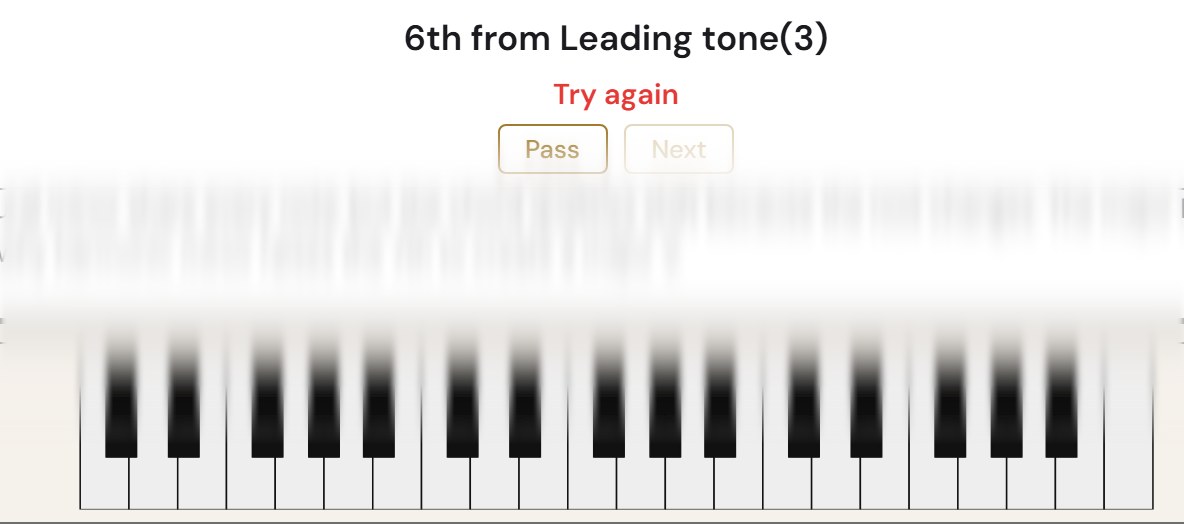
A Scale Degrees exam question answered wrong: the question names a degree from a scale step, Try again shows under it in red, and the keyboard has been cleared for another go; the lesson in between is blurred.
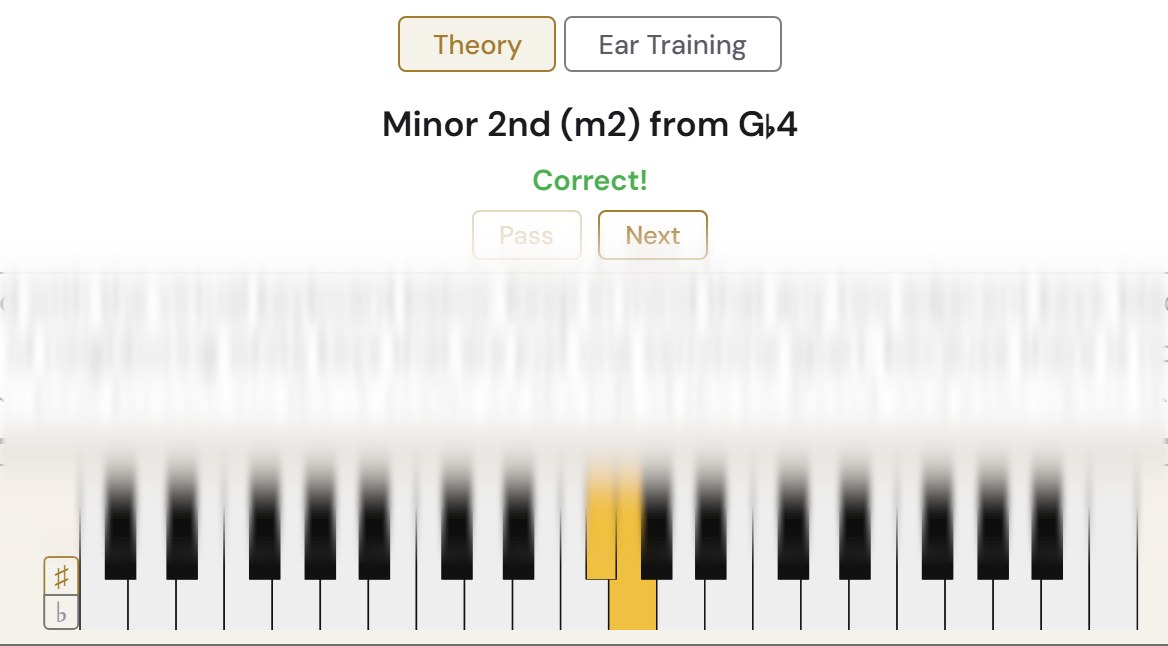
An Intervals exam question answered: the question names an interval from a starting note, Correct! shows under it, and the two answer keys are lit on the keyboard; the lesson in between is blurred.
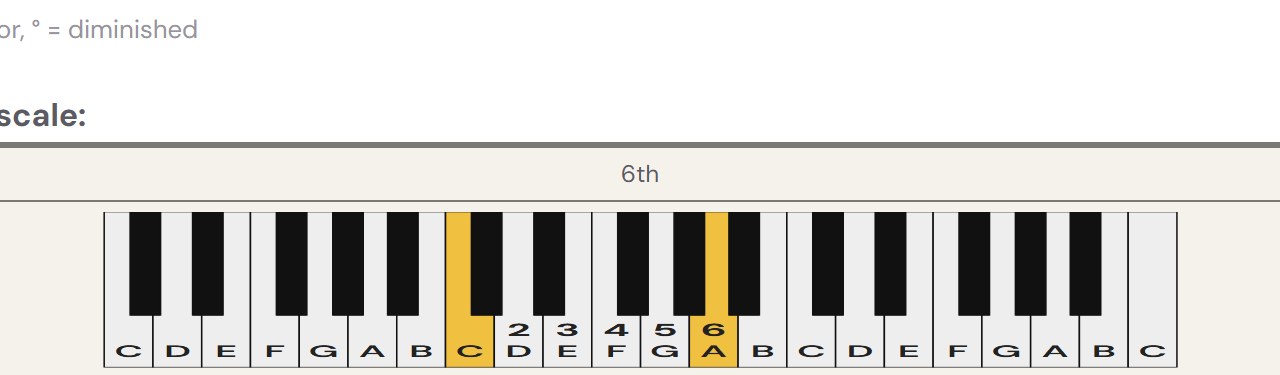
The Scale Degrees keyboard after clicking C and then A: both keys lit, the degrees between them numbered, and the answer 6th.
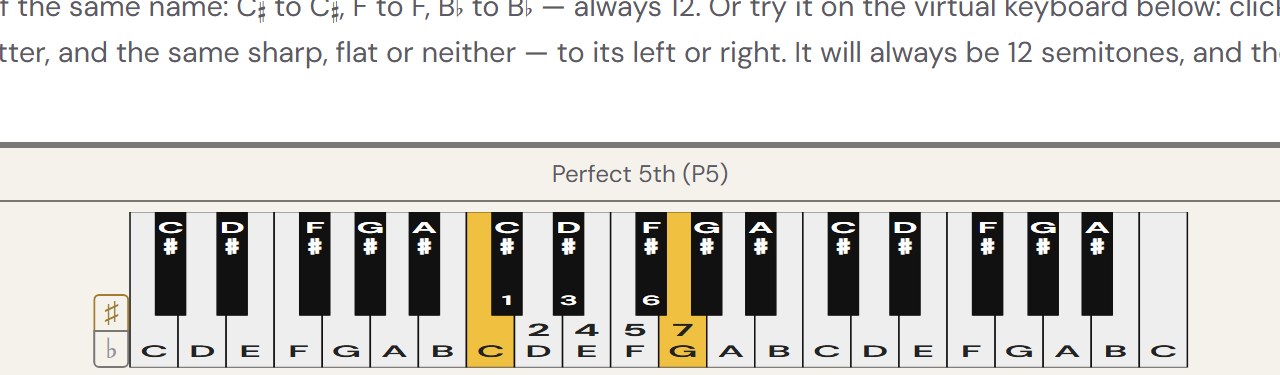
The Intervals keyboard after clicking C and then G: both keys lit, the semitones between them numbered, and the answer Perfect 5th (P5).
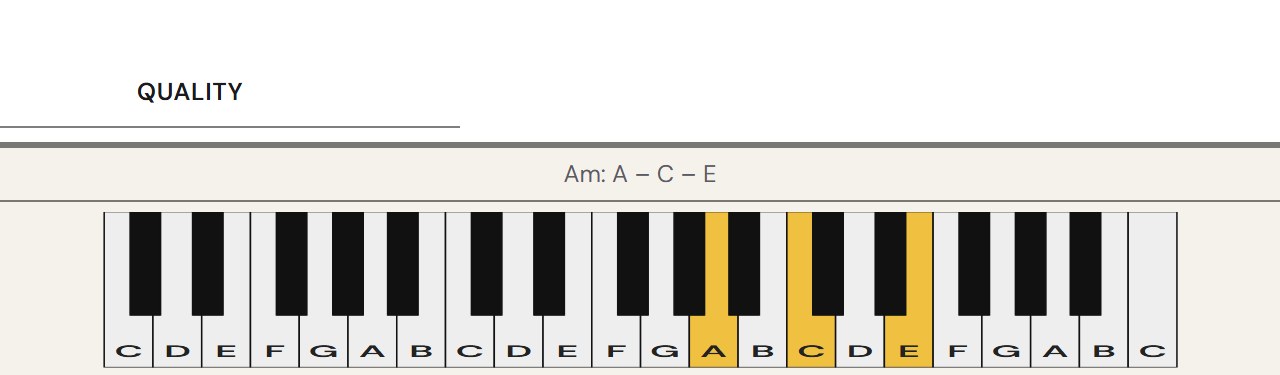
The Chords keyboard after clicking A: A, C and E lit, and the answer Am: A – C – E.